Claude Code Computer Use: Your AI Can Now See and Control Your Screen
Claude Code just learned to see your screen and control your Mac. I set it up, tested it live, and here's the complete breakdown — what works and what doesn't.
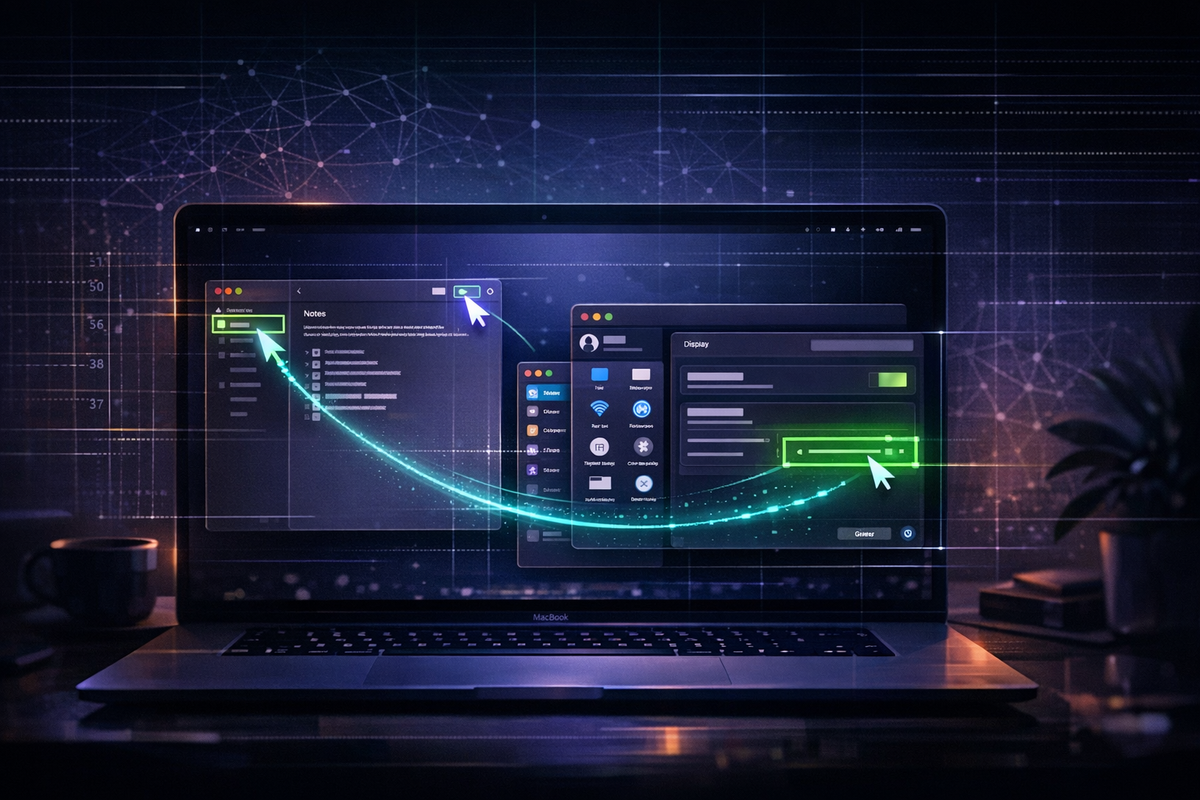
On March 23, 2026, Anthropic shipped what might be the most underrated feature in AI tooling this year. Claude Code — the terminal-based coding agent I use daily — learned to see my screen and control my Mac. Open apps, click buttons, type text, take screenshots, verify what it builds. All from the same terminal where I'm already writing code.
Here's the complete breakdown — how it works, how to set it up, what it can actually do, and where it falls short.
What Actually Changed
Claude Code has always been powerful in the terminal. It writes code, runs commands, edits files, manages entire projects. But it was blind. It could build your app but never see it running. It could write UI code but never verify what it looked like on screen.
Computer use closes that gap. It lets Claude Code take screenshots of your desktop, analyze what's on screen using its vision model, and control your Mac — clicking buttons, typing text, scrolling through apps, navigating interfaces. The feature ships as a built-in MCP server and is available on Pro and Max plans.
This is the culmination of Anthropic's 18-month computer use journey. What started as a sandboxed API-only capability in October 2024 now runs directly on your local machine.
How the Perception-Action Loop Works
At its core, computer use is a screenshot-analysis-action feedback loop. Claude captures the screen, analyzes the image to identify UI elements at the pixel level, decides what to do next, executes the action, then takes another screenshot to verify the result. This cycle repeats until the task is complete.
Four primary actions:
- Screenshot — capture the current display
- Click — move cursor and click at specific pixel coordinates
- Type — input text into the focused field
- Key — trigger keyboard shortcuts like Cmd+C or Enter
Advanced actions include scroll with directional support, drag operations, triple-click, hold-key, wait, and a zoom capability that renders a specific screen region at full resolution for reading fine details.
💡 This is client-side architecture. Claude never directly touches your OS. The local runtime captures screenshots, sends them to the API, receives tool-use requests with coordinates and keystrokes, executes those locally via macOS Accessibility APIs, and loops back with a new screenshot. Claude counts pixels from screen edges to calculate exact cursor positions.
Setting It Up (2 Minutes)
Three steps.
- Enable the MCP server — run /mcp in Claude Code, find computer-use in the list, select Enable
- Grant Accessibility — System Settings → Privacy & Security → Accessibility → add your terminal app
- Grant Screen Recording — System Settings → Privacy & Security → Screen Recording → add your terminal app
You need Claude Code v2.1.85 or later. The feature only works in interactive sessions — the -p flag for scripted mode is unsupported.
📝 Even with max trust mode, computer use still asks for per-app permission every session. This is a separate, intentionally non-overridable safety layer. You will always get the approval dialog for which apps Claude can control — and there's no config to skip it.
I Tested It Live
I wanted real experience before writing about this. No synthetic benchmarks — just hands-on testing to see what works and what doesn't.
Test 1: Create a Note from Scratch
I asked Claude to open Apple Notes and create a note. It requested permission to control Notes, opened the app, located the compose button, clicked it, and typed a full note with a title, body text, and timestamp. First try. No errors. Simple, but satisfying — an AI just operated a native Mac app like a human would.
Test 2: Multi-App System Inspection
For something more complex, I asked Claude to inspect my Mac specs across multiple apps — without modifying anything. Here's what it did:
- Opened Safari — got read-only access automatically (browser safety tier). Could see the screen but couldn't click or type. The safety model in action.
- Opened System Settings — full access tier. Clicked through General → About.
- Scrolled through hardware specs — read my MacBook Pro model, M4 Max chip, 128GB RAM, serial number, warranty status.
- Identified my triple-monitor setup — Built-in Liquid Retina XDR plus two Monduo 16P external displays.
- Navigated to Battery — read charge level (80%), health status (Normal), energy mode settings.
The whole multi-app inspection took about 60 seconds. Not fast, but completely hands-free. Every piece of information was extracted from pixel-level screenshot analysis — reading text rendered on screen, not querying any API.
The Safety Model
This is where Anthropic got serious. Computer use runs on your actual desktop, not a sandbox. So they built a multilayered safety system.
Three App Tiers
- Browsers (Safari, Chrome, etc.) → read-only. Claude can see what's on screen but cannot click, type, or navigate. For browser interaction, you need the Chrome extension.
- Terminals and IDEs (Terminal, iTerm, VS Code, etc.) → click-only. Can click buttons and scroll, but no typing or keyboard shortcuts. For shell commands, use the Bash tool.
- Everything else → full control. No restrictions.
Additional Guardrails
- App hiding — non-approved apps are hidden from screenshots, so Claude only sees what you've approved
- Terminal exclusion — the terminal window is excluded from screenshots, preventing feedback loops and prompt injection
- Machine-wide lock — only one Claude session can control the computer at a time
- Instant abort — pressing Escape anywhere immediately stops the current action
- Prompt injection detection — classifiers automatically scan screenshots for content attempting to redirect Claude's behavior
Anthropic's blog post for this feature was described by observers as reading more like a safety disclosure than a product launch. They recommend closing apps with sensitive information before use and avoiding financial accounts, legal documents, or medical data.
What You Can Build With It
The Build-Verify Loop
The killer use case. Claude writes code, compiles it, launches the resulting application, clicks through the UI, screenshots each state, identifies issues, patches the code, and re-verifies — all in one unbroken conversation. For iOS developers, Claude can control the iOS Simulator directly, tapping through screens after building a target.
Visual Bug Reproduction
Claude resizes windows, triggers CSS layout issues, captures the broken state, then fixes the code and verifies the fix. No more describing visual bugs in words — Claude can see them.
Legacy System Automation
ERPs, government portals, internal tools with no APIs. Claude can navigate these interfaces through pure screen control — data entry, form filling, report extraction. This alone is worth the feature for teams stuck with legacy systems.
Cross-Platform Publishing & Research
Post content to platforms without API access. Navigate competitor dashboards for research. Manage ad campaigns across Google and Meta interfaces. Anything you can do with a mouse and keyboard, Claude can attempt.
💡 The connector-first architecture is smart engineering. Claude uses dedicated MCP tools (Slack, Gmail, Calendar) when available, falls to Bash commands next, then the Chrome extension for browser work, and only uses screen control as a last resort. Pixel-level interaction is reserved for things nothing else can reach — native apps, simulators, and tools without an API.
How It Compares
vs OpenAI Operator
Operator lives in a cloud-hosted virtual browser — secure but limited to web-only tasks. Claude controls the entire desktop. On the OSWorld benchmark, Claude scores 72.5% versus Operator's 38.1%. But on browser-specific benchmarks like WebVoyager, Operator dominates at 87% versus Claude's 56%. Operator costs $200/month; Claude starts at ~$20.
vs OpenClaw
Open-source, superior sandboxing, and multi-agent support. But it requires hours of Docker and container setup compared to Claude's 2-minute onboarding. Some developers layer both — OpenClaw for always-on persistence, Claude for reasoning and vision accuracy.
vs Everyone Else
Google's Project Mariner is browser-focused. Manus Desktop excels at long-running research tasks. The open-source Browser Use library is the cheapest option and supports multiple LLMs. Each has its niche, but none match Claude's combination of desktop-wide control and code-level reasoning in a single workflow.
The Honest Limitations
This is a research preview, and it shows.
- Speed — every action requires a screenshot round-trip to the API. Complex multi-step flows are noticeably slow.
- Token costs — every screenshot is an image input consuming significant tokens. Multi-step tasks can burn through hundreds of thousands of tokens.
- Browser restrictions — read-only tier for browsers means Claude can't navigate the web through screen control. You need the Chrome extension for that.
- Reliability on complex workflows — simple, predictable UIs work great. Complex multi-step workflows with authentication, dynamic content, or unusual UI patterns? Inconsistent.
- Single session lock — only one Claude instance can control the screen at a time. Your desktop must stay awake and Claude's app must remain running.
- Security surface — researchers have already found attack vectors including prompt injection via screenshots and permission bypass chains. Anthropic has been patching actively, but the attack surface is large.
Verdict
Computer use is a genuine inflection point. The gap between AI that writes code and AI that can see and use what it builds just closed. Setup takes 2 minutes, the safety model is thoughtful, and for the right use cases — native app testing, build-verify loops, legacy system automation — it's already transformative.
But it's not magic. The speed overhead, token costs, browser restrictions, and reliability gaps mean you won't be replacing your hands anytime soon. The best mental model: a capable but slow intern who can see your screen. Great for tasks you'd rather not do yourself. Not ready to take over your entire workflow.
The most exciting part? This is the worst it will ever be.