
Claude Code Computer Use: Your AI Can Now See and Control Your Screen
How Claude Code computer use works, how to enable it, and how to turn desktop interaction into evidence for a development task.
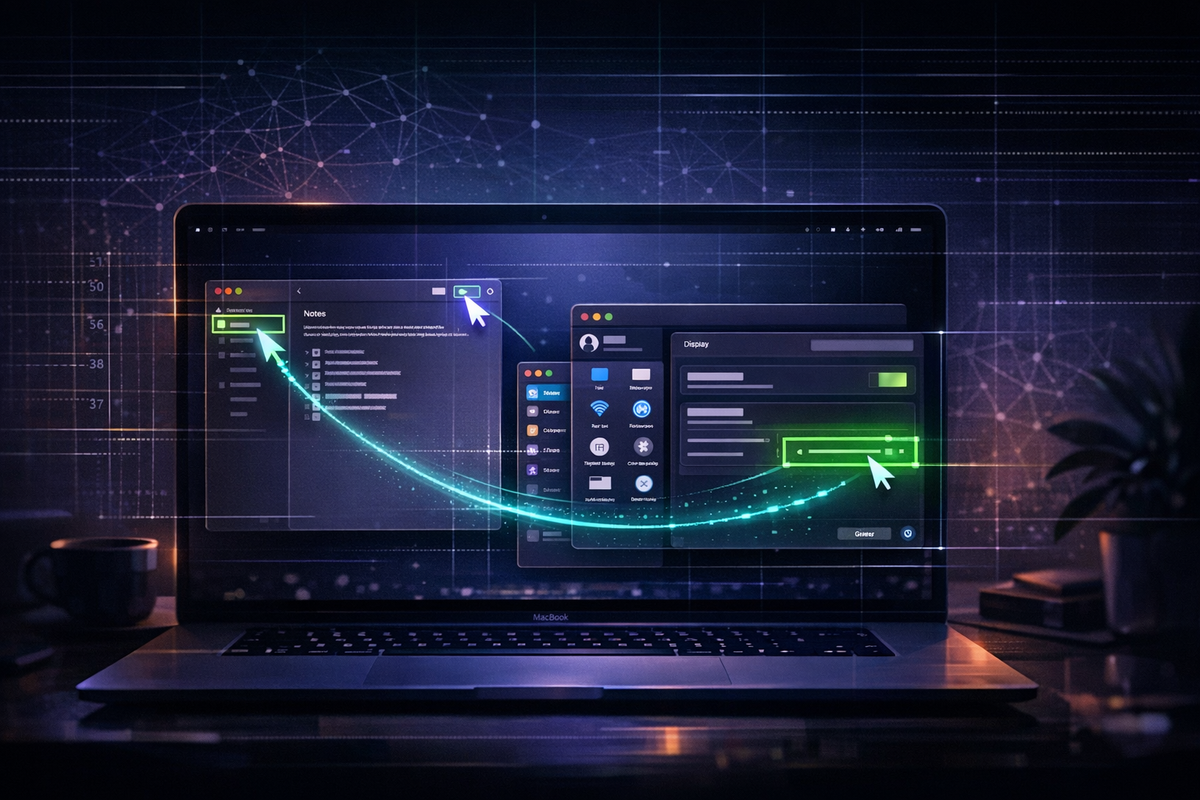
A coding agent can compile an application and still miss what happens when someone opens it. A dialog may cover the save button. A window may clip its content. A successful build says nothing about whether the next click works.
Computer use adds a way to inspect that gap: the agent observes the interface, takes an action and observes again. The useful outcome is evidence about application behavior, not a claim that a screenshot proves the whole product works.
Enable the CLI capability
As checked September 20, 2026, Claude Code’s CLI computer use is a macOS research preview for Pro and Max accounts authenticated through claude.ai. It requires an interactive session; the -p mode is unsupported. In /mcp, enable the built-in computer-use server, then grant macOS Accessibility and Screen Recording permissions when prompted. A process restart may be required.
App approvals apply to the current session. Browsers and trading platforms are view-only; terminals and IDEs are click-only; other approved apps can receive fuller interaction. Browser actions therefore need a separate browser integration such as Claude in Chrome. The CLI and Desktop are distinct surfaces; use the documentation for the one you run.
Observe, act, verify
The local runtime executes screen actions and supplies screenshots to the model. Claude Code hides other visible apps during interaction and excludes its terminal from screenshots. One session holds the computer-use lock until that session exits. Escape aborts the current action, but does not release that session’s lock. These controls reduce exposure; they do not prove that every instruction visible inside an approved app is trustworthy.
Sources: CLI computer-use setup and behavior. Documentation checked September 20, 2026.
A practical build-and-check task
Start with a disposable test project and a defined result. For example: build a small settings app, open its preferences window, move a slider, close the window, reopen it and confirm that the selected value persisted. Ask for evidence of both the visible state and the saved value.
The task should state the initial condition, allowed changes, expected result and stop condition. “Test the app” leaves too much unspecified. “Verify this settings flow and report the first failed step” produces a result that another engineer can reproduce.
| Stage | Useful evidence |
|---|---|
| Build | The build command and its exit result. |
| Launch | The correct application and test configuration are running. |
| Interaction | The intended control received the action; no unexpected modal intercepted it. |
| Persistence | The saved state survives the specific restart or reload required by the task. |
| Report | Observed result, remaining uncertainty and a reproducible failure path when applicable. |
Keep UI checks alongside ordinary tests. Screen interaction is valuable for layout, focus, native controls and end-to-end behavior; unit and integration tests are better for exhaustively checking deterministic logic. A screenshot can demonstrate clipping. It cannot establish that every data value or authorization path is correct.
Choose the narrowest useful interface
Use a structured tool when it exposes the exact operation and returns a dependable result. Use screen interaction when the visual interface is itself the subject of the test, or when no suitable integration exists. This keeps the feedback loop short and makes failures easier to diagnose.
A legacy web portal is still browser work. Its lack of an API does not remove the CLI screen-control restrictions for browsers. Route it through the supported browser integration and give the task the same explicit acceptance criteria you would give a native app test.
Publishing, purchasing and changing production data require clear task authorization. A technical ability to click a button does not define the intended scope. For development checks, a test account and disposable records usually make the result easier to reproduce as well as easier to undo.
Measure the workflow, not the demo
A short successful demo proves a narrow path. Evaluate the workflow under realistic conditions: authentication expiry, loading states, unexpected dialogs, altered window size and an unavailable service. Record where the agent stops and whether it reports the failure accurately.
Track accepted outcomes, interaction count, elapsed time and billed usage where available. Avoid comparing unrelated benchmark scores from different models or harnesses as if they measured the same desktop workflow. A faster run that leaves the application in the wrong state is not an improvement.
The strongest use case is a controlled feedback loop: change code, run the application, inspect the relevant behavior and verify the fix. Computer use makes that loop possible across more interfaces. The engineering work is defining what counts as success and preserving evidence that it actually happened.